Google Merchant Center: How to Use additional_image_link to Boost Shopping CTR (Without Getting Disapproved)
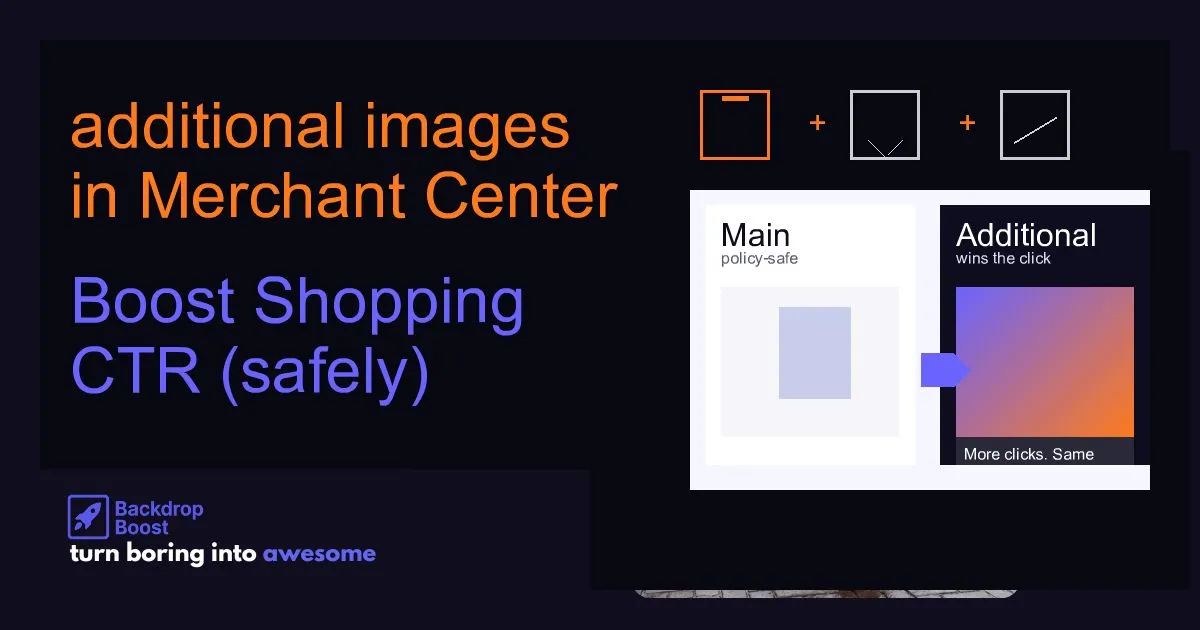
Your main Shopping image is stuck on boring white background for policy reasons. Good. Keep it. Then use additional_image_link to add lifestyle/context images that actually earn the click — without risking disapprovals.
🤖Explore this article with AI
Get AI-powered summaries, insights, and analysis from top AI platforms. Each platform offers unique perspectives on the content.
Your Shopping impressions are fine.
Your bids are fine.
Your prices are… whatever.
But clicks?
Crickets.
Here’s the uncomfortable truth:
Most Shopping accounts don’t have a bidding problem. They have an image problem.
And Google makes this extra annoying because your main image has to be squeaky clean.
So you end up with a grid full of identical white-background rectangles.
Which means you lose the click.

Shopping is a thumbnail battle. Your main image is constrained, so your additional images do the heavy lifting.
The workaround (that almost nobody uses properly): additional_image_link.
You keep the compliant main image.
Then you add lifestyle/context images as additional images.
Best of both worlds.
This post shows exactly how to do it, what to upload, what to avoid, and how to test it like an operator.
Quick definition: what is additional_image_link?
In Merchant Center, image_link is your main product image.
additional_image_link is an attribute that lets you attach extra images to a product.
Those extra images can show:
- different angles
- close-ups
- packaging
- “in use” / lifestyle context
- details that reduce uncertainty (texture, size, fit)
Depending on where your product shows (and the query), Google can surface different images.
And even when it still shows the main image most of the time… having a stronger set of additional images helps the system.
Why this boosts CTR (in plain English)
When someone searches, they’re not choosing the “best product.”
They’re choosing the most clickable promise.
Lifestyle/context images do three things:
- They tell a story in 0.3 seconds
- “Oh, that’s what it looks like in a real kitchen.”
- They reduce uncertainty
- scale
- texture
- how it’s used
- They differentiate you from the sea of clones
- if everybody has the same white background… the one with context wins.
The rule: keep your main image boring (seriously)
I know you want to swap the main image to something spicy.
Don’t start there.
Main images are where disapprovals happen:
- text overlays
- promotional badges
- watermarks
- weird crops
- messy backgrounds

Keep your main image compliant. Put the “story” in your additional images.
Keep the main image compliant.
Use additional images to win the click.
What “good” additional images look like (a checklist)
If you only take one thing from this post, take this.
The best additional images:
- show the product being used
- show scale (in hand, on body, in room)
- show materials / texture close-up
- show what’s included (packaging, accessories)
- keep lighting believable (no surreal AI glow)
- look like something you’d see on a legit PDP
The worst additional images:
- look like stock photos from 2012
- have big fake text banners
- show a different variant than the listing (wrong color/size)
- are visually inconsistent / uncanny
Merchant Center policies: what to avoid (the fastest ways to get burned)
I’m not going to copy/paste policy pages here.
Instead, here are the practical “don’t do this” rules that keep people out of trouble:
1) No promotional overlays
Avoid:
- “50% OFF”
- “FREE SHIPPING”
- “Best Seller”
Even if it’s true.
2) No watermarks
Even subtle ones.
3) Don’t misrepresent the product
Common mistake with AI images:
- it “helpfully” changes details
- adds accessories you don’t sell
- changes the shade/material
If the user clicks for that and receives this, Google will punish you eventually.
4) Don’t mix variants
If the feed item is “Black / Size M” — your additional images need to be Black / Size M.
5) Keep it safe for the ad surfaces
If it’s borderline, don’t.
Exactly how to add additional_image_link (3 common setups)
First: where do the image URLs come from?
They need to be publicly accessible URLs (https), crawlable by Google.
Typical sources:
- Your own site / CDN
- Shopify CDN
- A storage/CDN like Bunny
If the URL 403s, requires a login, or blocks Googlebot, it won’t work reliably.
Setup A: Google Sheets feed (most common)
- Open your feed in Google Sheets.
- Add a column header:
additional_image_link - Put URLs in the cell.
Format options:
- Multiple columns:
additional_image_link,additional_image_link_2,additional_image_link_3, … - Or a single column with multiple URLs (depends on your feed setup; I prefer multiple columns for clarity).
Setup B: XML feed
Include repeated tags, e.g.
<g:additional_image_link>https://example.com/img-1.webp</g:additional_image_link>
<g:additional_image_link>https://example.com/img-2.webp</g:additional_image_link>
Setup C: API / Content API for Shopping
Same idea: add additional image URLs in the product resource.
If your agency/dev owns the feed pipeline, this is the cleanest long-term way.
My recommended “minimum viable” image set per SKU
If you’re busy (you are), do this:
Per SKU, ship 3 additional images:
- Lifestyle / in-use
- the product in context
- Detail close-up
- texture, stitching, surface, ingredients label, etc.
- Scale
- in hand / on body / next to everyday objects

The simple 3-pack: context, detail, and scale.
That’s enough to beat most competitors.
The operator testing plan (so you know it worked)
You don’t need a PhD.
You need a clean test.
Step 1: Choose a set of products
Pick 20–50 SKUs that already have:
- stable impressions
- decent conversion tracking
Step 2: Only change additional images
Don’t touch titles, prices, bids, or anything else during the test window.
Step 3: Run it for long enough
Typical:
- 14–21 days
(Shorter if you have huge volume. Longer if volume is low.)
Step 4: Measure
Watch:
- CTR
- CPC
- CVR
- cost / conv
Rule of thumb I like:
- CTR up + CPC flat-ish = you’re printing.
- CTR up + CPC up a bit can still be a win if CVR holds.
If CTR goes up and CPC doesn’t spike (or spikes less than the CTR gain), you’re usually winning.
Step 5: Scale
Roll it out to your top categories.
How to generate additional images fast (without a photoshoot)
This is where it gets fun.
If you already have clean product photos, you can create lifestyle/context images in minutes.
That’s literally what BackdropBoost is for.
Already want better additional images today? You can create lifestyle images for your products in seconds — then upload those URLs to
additional_image_link.
A few “winning” additional image ideas by category
Apparel
- on-body (realistic lighting)
- fabric close-up
- fit detail (collar/cuff/hem)
Home / furniture
- staged room scene
- detail shot of material/texture
- scale reference (next to a common object)
Beauty
- product in bathroom vanity scene
- texture smear (if relevant)
- what’s included / packaging
Electronics
- in-hand usage
- ports/buttons close-up
- included accessories laid out neatly
Bottom line
Don’t start by breaking policy with a spicy main image.
Start by being smart.
Keep the compliant main image.
Then use additional_image_link to add the images that actually earn the click.
That's how you win CTR without waking up to a "disapproved" email.
Try BackdropBoost Free (5 Credits)

About Alfred Simon
Co-Founder at BackdropBoost
Google Ads Expert • AI Entrepreneur
Hey there! I'm Alfred, a Google Ads expert turned AI entrepreneur. After years of managing Google Shopping campaigns and fighting for better performance, I built BackdropBoost to solve the image background problem that was driving me (and my clients) crazy.
With almost a decade of experience in Google Ads and managing hundreds of millions of dollars in ad spend, I know we need to take every opportunity to improve our campaigns. Back in the day we went down in the rabbit holes of SKAGs, adding bid adjustments to everything we could and creating waterfall Shopping campaigns.
Nowadays most of those things are automated. Now we have AI to play with and we need to use it to our advantage.
That is why I built BackdropBoost. With years of experience in Google Ads now I try to create tools that will help us, Google Ads experts, to find new opportunities to improve our campaigns.
Got questions about Google Shopping, AI image generation, or scaling e-commerce campaigns? I'd love to connect and chat!
🤖Explore this article with AI
Get AI-powered summaries, insights, and analysis from top AI platforms. Each platform offers unique perspectives on the content.
Related Resources
Ready to Transform Your Product Images?
Get 5 free credits to test our AI-powered background generator
Start Free Trial